Adding additional assignees to a task
Steps to add more people to a task
Open the task and select Change Assignees.
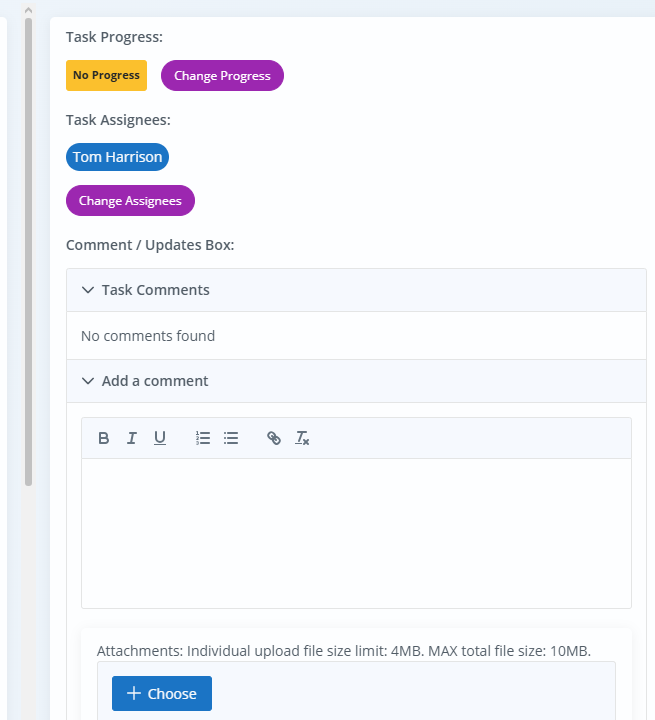
Changing task assignees
The Change Assignees window lets you review current assignees, add more people, replace an assignee, remove an assignee, and view the delegation history for the task.
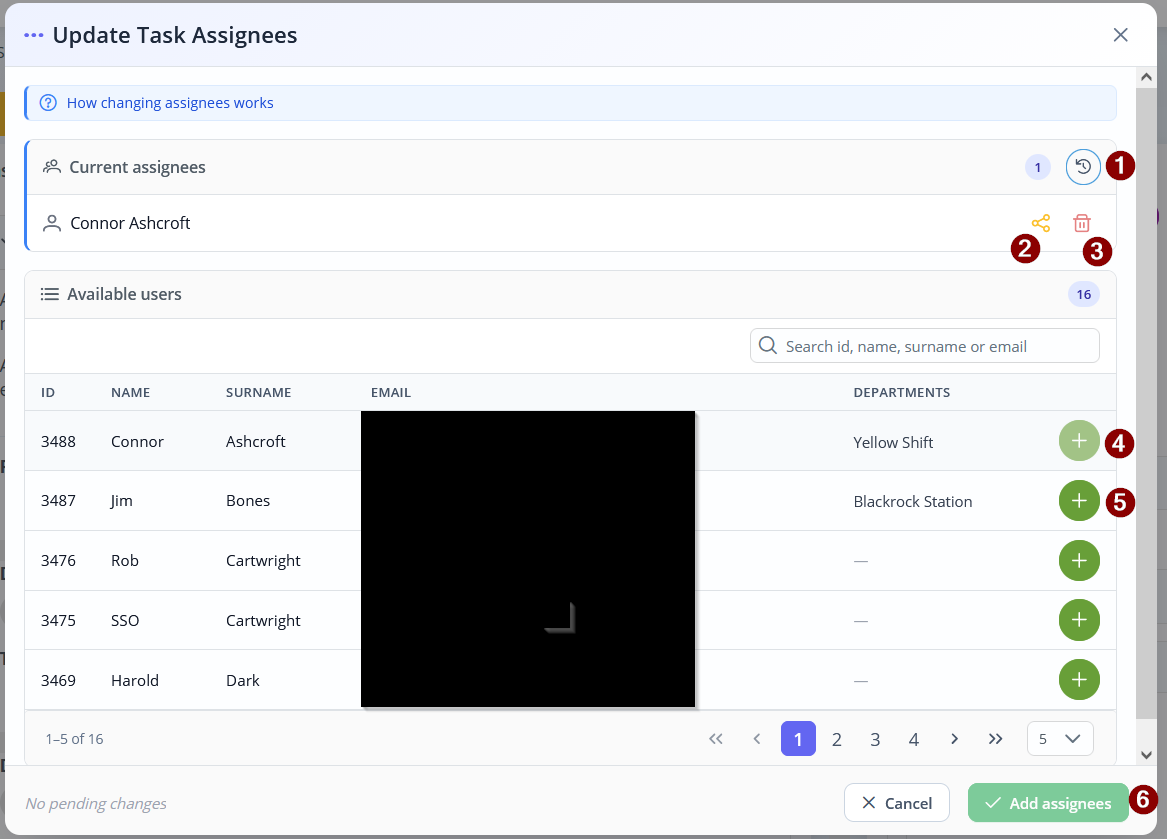
The image below corrosponds to the actions listed:
What each action does
- Delegation history – Opens the history of delegation changes for the task, showing where the task has been, who it has been assigned to, and related progress updates.
- Replace assignee – Replaces the selected assignee with a different user.
- Remove assignee – Removes the selected user from the task. This option is only available when the task has two or more assignees.
- Already assigned – A greyed-out add button shows that the user is already assigned to the task and cannot be added again.
- Add assignee – Adds the selected user as an additional assignee on the task.
- Add assignees – Saves your changes.
How to use Change Assignees
- Open the task and select Change Assignees.
- In the Current assignees section, review the users already assigned to the task.
- To view previous delegation activity, select the delegation history button.

- To replace someone already assigned, use the replace assignee button next to their name.

- To remove someone from the task, use the remove assignee button next to their name. This is only available when there are at least two people assigned to the task.

- In the Available users section, use the add assignee button to add another person to the task.
- If the user is already assigned, the add button will be greyed out and cannot be selected.
- Select Add assignees to save the changes.
Assignment rules
You can assign users from different departments to the same task. However, the task entity and To Department follow the context of the first assigned user.
For this reason, the first assigned user should be the one whose department or task context the task should belong to.
Example
If Connor is already assigned to a task, you can open Change Assignees and use the green add button to add Jim as another assignee.
Once saved, both Connor and Jim will appear in the task assignee list.
If you want Connor replaced instead, use the replace assignee option next to Connor and select the new user.
Audit trail
All assignment changes are traceable. The delegation history helps users understand who the task has been assigned to over time and how it has moved through ownership and progress changes.
Notes
- A user cannot be added to the same task more than once.
- The remove option is only available when two or more users are assigned to the task.
- Changes are not applied until Add assignees is selected.
Was this article helpful?
That’s Great!
Thank you for your feedback
Sorry! We couldn't be helpful
Thank you for your feedback
Feedback sent
We appreciate your effort and will try to fix the article